
Screenshots

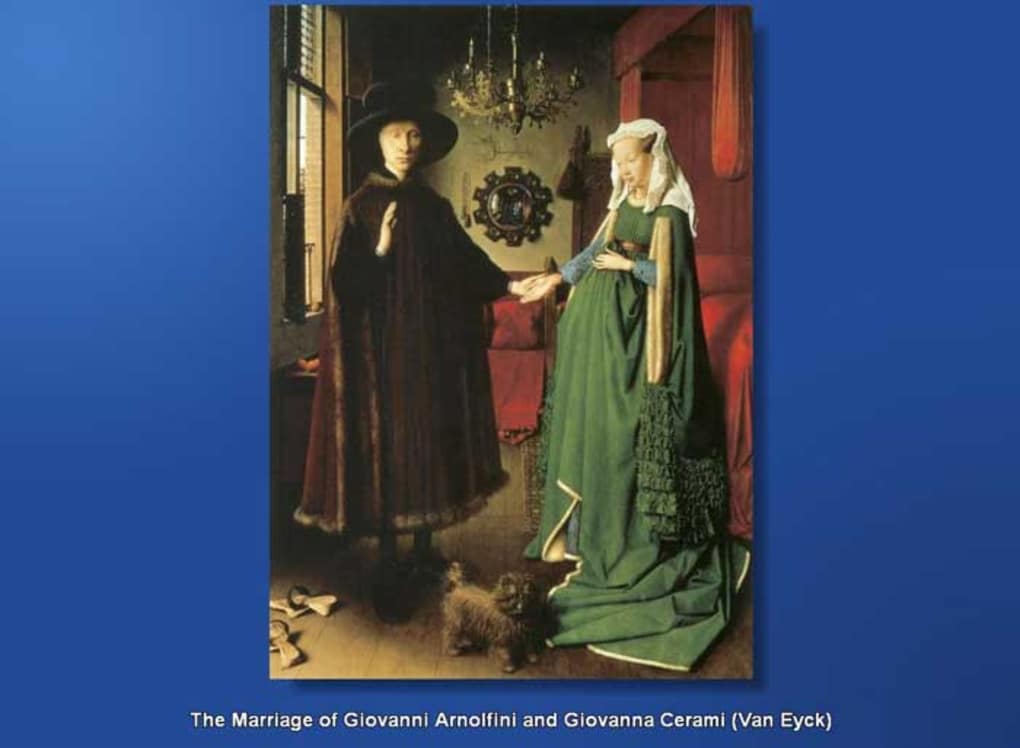

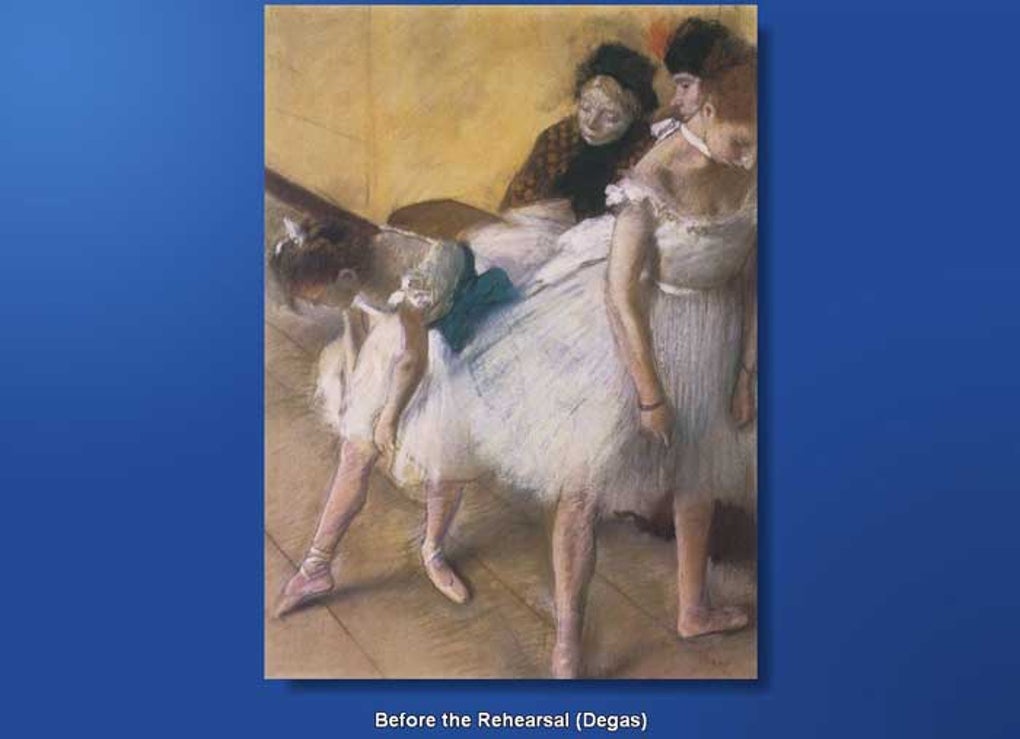
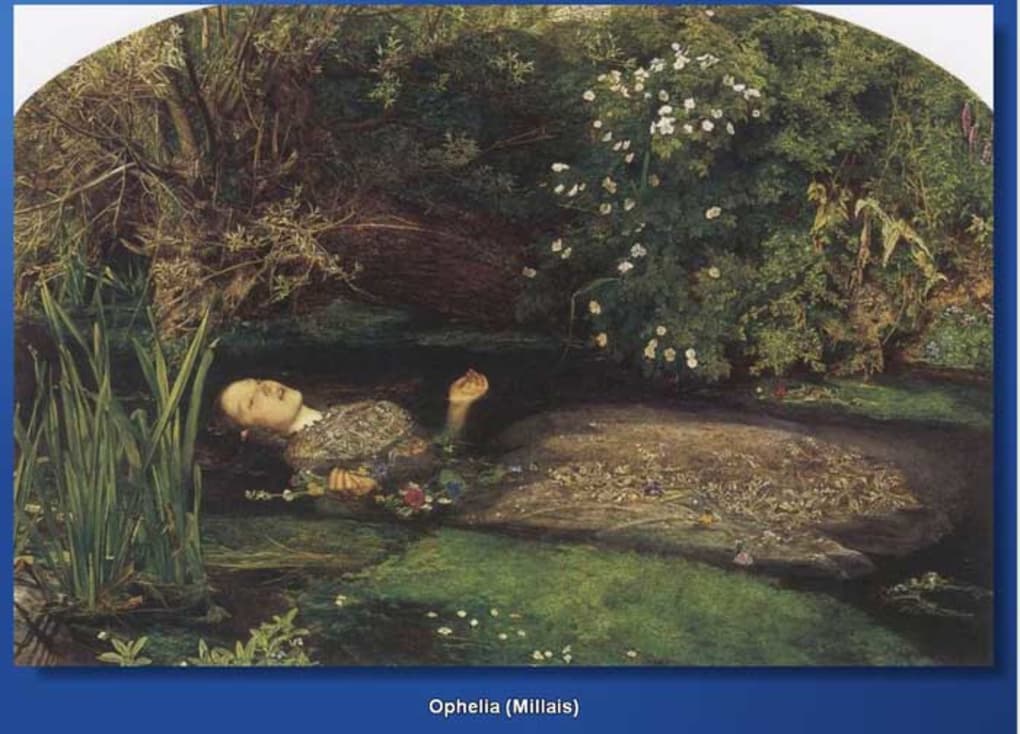
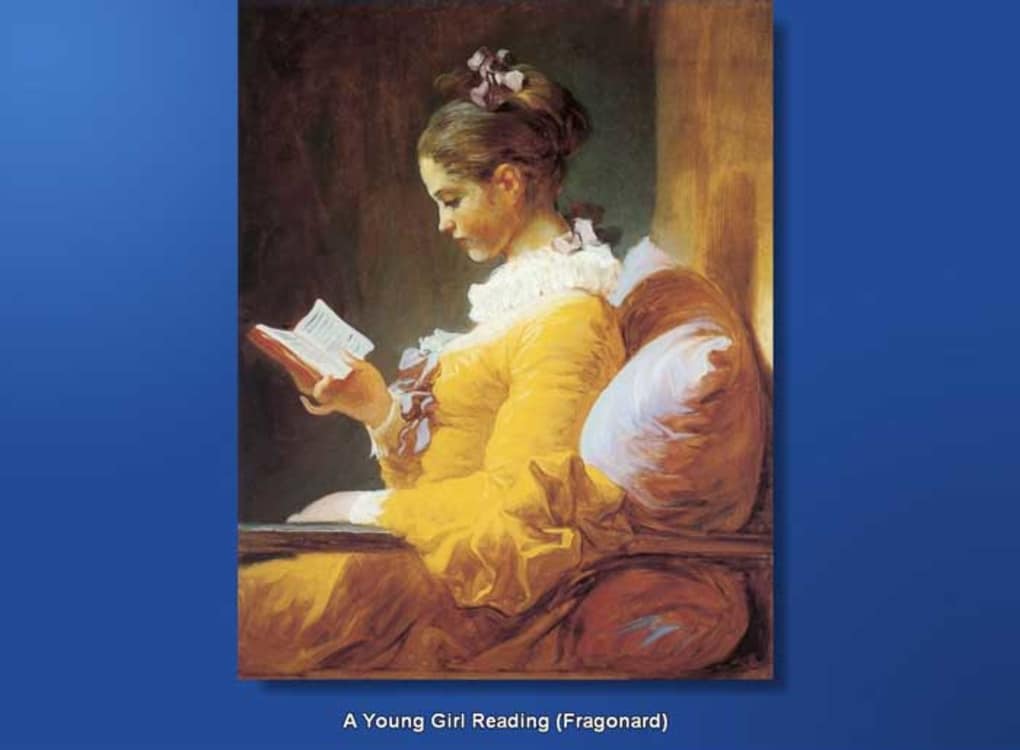
App details
- Size
- 14.86 MB
- Updated
- November 5, 2007
- Requires
- Windows XP
- Language
- English
- License
- Free
- Developer
- Fineartscreensavers
- Category
- Windows OS
SoftPas in:
This product is also available in the following languages:
About 100 Great Works
Download 100 Great Works – Free Art Gallery Screensaver for Windows & macOS
Overview
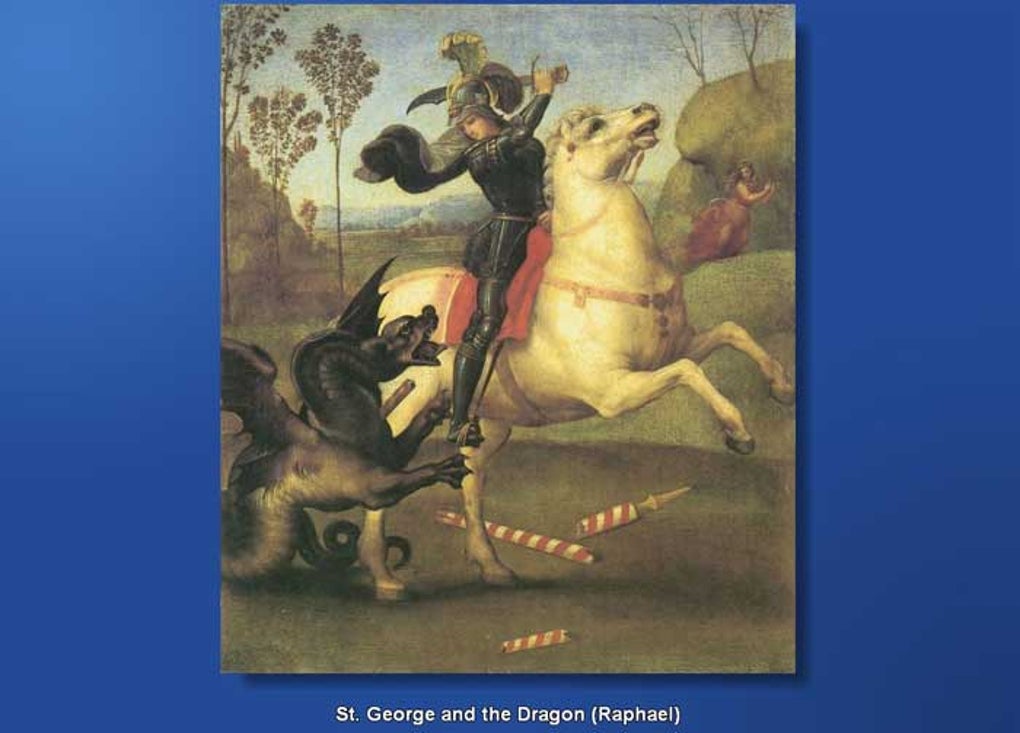
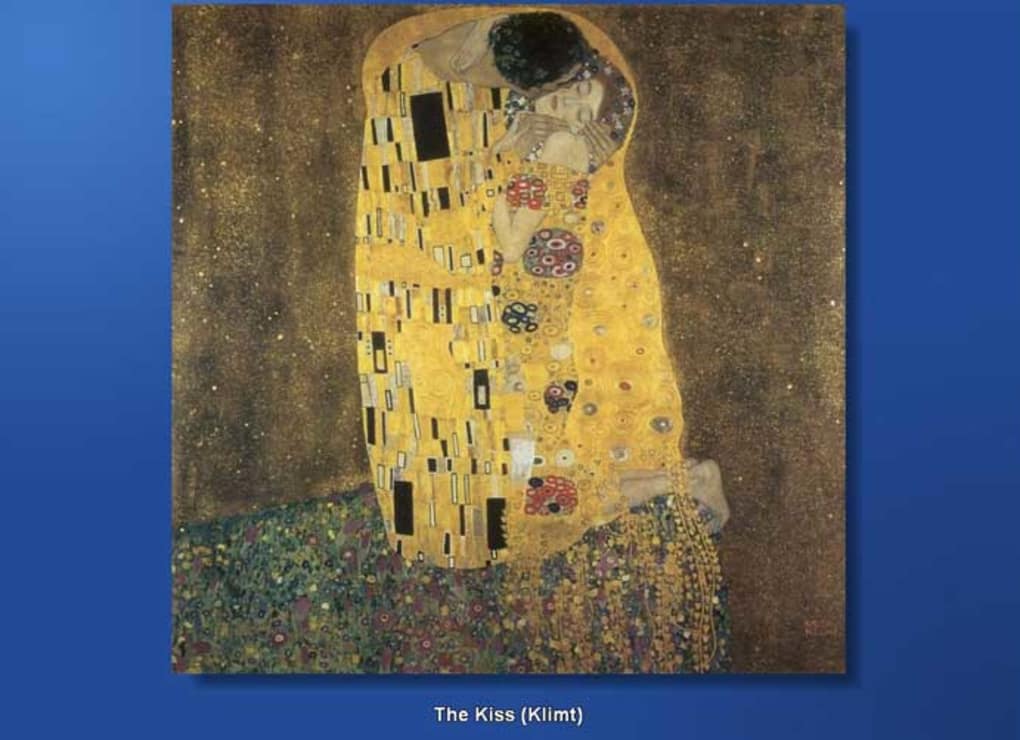
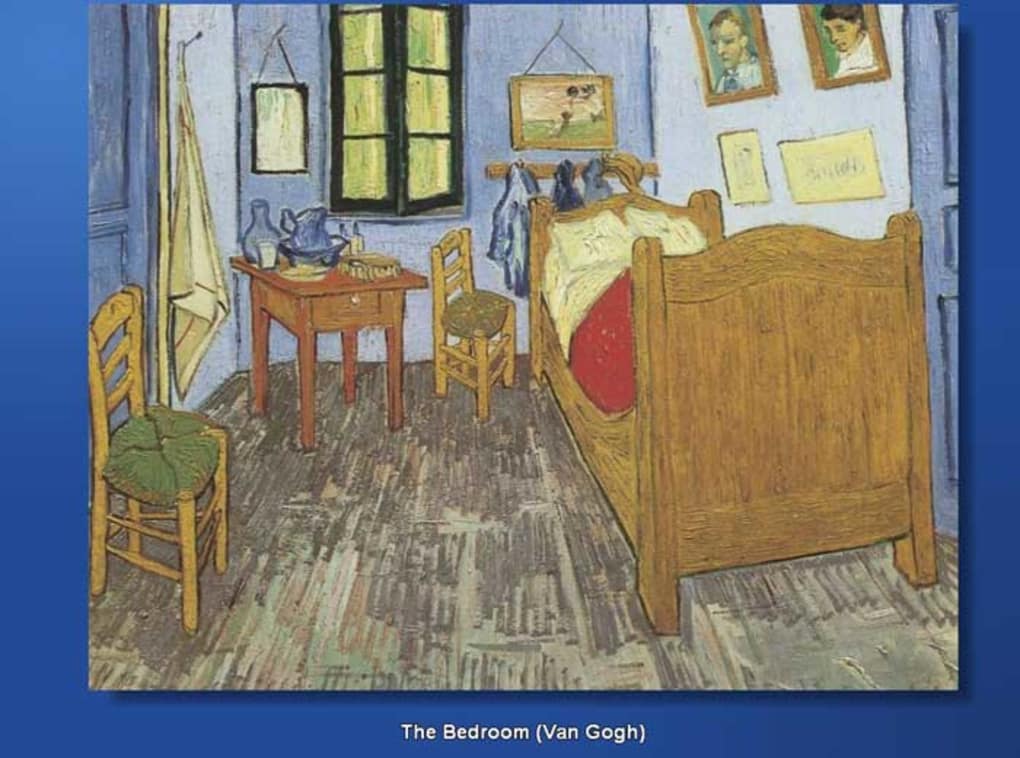
100 Great Works brings the world’s most celebrated paintings straight to your desktop, turning an idle screen into a rotating gallery of art history. Whether you’re a seasoned collector, a student of art, or simply enjoy a splash of colour while you work, this free screensaver curates the 100 most influential paintings—from the luminous sfumato of Leonardo da Vinci to the bold abstractions of Wassily Kandinsky. Each masterpiece appears for a few seconds, accompanied by its title, author, and year, giving you a quick lesson in art appreciation without ever leaving your chair. The software runs silently in the background, activating after a period of inactivity, and can be paused with a single keystroke, making it an unobtrusive yet inspiring addition to any workstation. Because it’s a screensaver, it consumes minimal system resources, keeping your computer’s performance intact while delivering a high‑resolution visual experience. The package is completely free, safe to download, and receives regular updates that add new metadata, improve image quality, and fix occasional bugs. In short, 100 Great Works is more than a decorative tool—it’s an educational companion that helps you build a broader cultural vocabulary while you wait for that next meeting to start.
Key Features & Benefits
- Curated Collection of 100 Masterpieces – Includes iconic works from the Renaissance, Baroque, Impressionism, Modernism and contemporary periods.
- High‑Resolution Images – Every painting is displayed at its native resolution (up to 1920 × 1080 px), ensuring crisp detail on HD and 4K monitors.
- Automatic Metadata Display – Title, artist, creation year, and a brief description appear subtly at the bottom of each slide.
- Customizable Timing – Choose how long each artwork stays on screen (5‑30 seconds) to match your workflow.
- Seamless Integration with System Settings – Works with Windows power‑save modes and macOS screen‑saver preferences without extra configuration.
- Lightweight & Low CPU Usage – Optimized rendering engine ensures the screensaver never slows down other applications.
- Free & Secure Download – Signed installer, no hidden fees, and regular security patches.
- Educational Mode (Optional) – Activate a voice‑over that briefly narrates the significance of each painting.
- Multi‑Language Support – Interface and metadata available in English, Spanish, French, German, and Italian.
- Regular Updates – New paintings and improved image compression are added quarterly.
These features combine to make 100 Great Works a versatile tool for both personal enjoyment and professional environments. Office managers can install it in common areas to inspire employees, teachers can use it as a visual aid during art history lessons, and remote workers can brighten up their home office with a rotating museum‑like backdrop. The optional educational mode adds an auditory layer that can be especially helpful for visually‑impaired users or for those who prefer a spoken narrative. Because the software is free, there’s no barrier to trying it out—simply download, install, and let your screen become a living gallery.
Installation, Usage & Compatibility
Step‑by‑Step Installation Guide
- Visit the official download page and click the Download for Windows or Download for macOS button.
- Save the installer file (e.g.,
100GreatWorks_Setup.exeor100GreatWorks.pkg) to your desktop or downloads folder. - Run the installer. On Windows, confirm the User Account Control prompt; on macOS, drag the app to your
/Applicationsfolder. - Follow the on‑screen wizard: accept the license agreement, choose an installation directory (default is fine), and click Install.
- When installation completes, launch the application from the Start Menu (Windows) or Launchpad (macOS).
Configuring the Screensaver
Upon first launch, the configuration window appears. Here you can set the slide interval, enable or disable the educational voice‑over, and select the language for metadata. The Preview button lets you see how the paintings will look on your monitor before you apply the settings. Once satisfied, click Save & Apply. The screensaver will now be listed among your system’s available screen‑saver options. On Windows, go to Settings → Personalization → Lock screen → Screen saver settings and choose “100 Great Works.” On macOS, open System Preferences → Desktop & Screen Saver → Screen Saver and select “100 Great Works” from the list.
Running the Screensaver
The program activates automatically after the period of inactivity you set in your operating system’s power options (default is 5 minutes). You can also start it manually by right‑clicking the desktop and selecting “Start 100 Great Works” or by double‑clicking the app icon. To pause or exit, simply move the mouse or press any key; the screensaver will instantly return you to your previous workspace. If you wish to temporarily disable the screensaver, uncheck it in the system settings without uninstalling the application.
Supported Operating Systems
Windows: Windows 10, Windows 11 (both 64‑bit). Earlier versions such as Windows 8.1 are also supported, though the user interface may appear slightly different.
macOS: macOS 10.15 Catalina and later, including Ventura and Sonoma. The app is optimized for Retina displays and supports both Intel and Apple Silicon (M1/M2) processors.
Mobile platforms (Android, iOS) are not currently supported because the software relies on desktop screen‑saver APIs; however, a companion “Art Wallpaper” app is planned for future release.
System requirements are modest: a 1 GHz processor, 512 MB RAM, and at least 200 MB of free disk space. The program runs smoothly on laptops, desktops, and even low‑power mini‑PCs, making it suitable for a wide range of environments.
Pros, Cons, FAQ & Final Verdict
Pros
- Free, ad‑free, and regularly updated.
- Curated selection of the most influential paintings.
- High‑resolution images suitable for modern displays.
- Low CPU and memory usage.
- Educational metadata and optional voice‑over.
- Multi‑language support broadens accessibility.
Cons
- No mobile version (Android/iOS) yet.
- Limited customization of transition effects.
- Only 100 paintings; power users may desire a larger library.
- Requires manual update for new releases (no auto‑update feature).
Frequently Asked Questions
Is 100 Great Works safe to download?
Yes. The installer is digitally signed, hosted on a secure HTTPS server, and scanned regularly for malware. No additional software or toolbars are bundled.
Can I add my own paintings to the slideshow?
The free version does not support custom uploads. A “Pro” upgrade is planned for future releases, which will allow users to import personal artwork and adjust the order.
How much RAM does the screensaver use while running?
Typical memory consumption stays below 100 MB on both Windows and macOS, even when the educational voice‑over is enabled.
Will the screensaver interfere with my power‑saving settings?
No. 100 Great Works respects the operating system’s sleep and display‑off timers. It will pause automatically when the computer enters sleep mode.
Is there a way to change the order of the paintings?
In the current version, the sequence is fixed to provide a curated narrative. Future updates may include a “shuffle” option or user‑defined playlists.
Final Verdict & Call to Action
100 Great Works succeeds at what it promises: turning an idle monitor into a compact museum that educates and delights. Its lightweight design, high‑quality visuals, and thoughtful metadata make it a standout free screensaver for anyone who appreciates art. While the lack of custom image support and a mobile version are noticeable gaps, the core experience is polished enough to recommend to both casual users and art‑enthusiasts. Download today, let the masters grace your screen, and enjoy a daily dose of inspiration without ever leaving your desk.
After testing 100 Great Works on both Windows 11 and macOS Ventura, we found it to be a stable, visually stunning, and educationally valuable screensaver. The curated selection covers a broad spectrum of art history, and the automatic metadata display makes each slide a mini‑lesson. Minor drawbacks such as the inability to add personal images are outweighed by its seamless performance and zero‑cost model. Overall, we give it a solid 4.5‑star rating.
Guides & Tutorials
How to install 100 Great Works
- Click the Download button above.
- Once redirected, accept the terms and click Install.
- Wait for the 100 Great Works download to finish on your device.
How to use 100 Great Works
This software is primarily used for its core features described above. Open the app after installation to explore its capabilities.
User Reviews
No reviews yet. Be the first to share your experience.
You may also like
more
Llama 2
Free-to-use large language model As the new addition to Meta’s arsenal of langua...

NotebookLM
Revolutionizing the note-taking and idea-generation process NotebookLM is an exp...

Github co pilot
AI-inspired software development and coding platform GitHub Copilot is a browser...

Google Gemma
Google’s lightweight AI models Introducing Google Gemma , a family of cutting-ed...

AI Image Enlarger
A free app for Windows, by ai-image-larger. AI Image Enlarger is a free software...

DALL E
AI-driven text-to-image transformation engine DALL·E is a free graphic and desig...